-
How to Use the Repair Utility for PowerPoint
Damaged PPT or PPTX files can now be much less of a headache. eRepair PowerPoint is a simple-to-use, compact, and speedy tool that makes data recovery easy for everyone. The developers of eRepair PowerPoint were conscious of the fact that users will have varying levels of experience, so anyone can use this software. eRepair PowerPoint simply pulls out the corrupted data and sends it to PowerPoint for viewing, editing, and saving. Because eRepair PowerPoint software was designed to be intuitive and self-explanatory, it is very easy to use, but we also created this user’s manual for your reference. Please check this document before you contact tech support. The answer to your question could be here.
In the event eRepair PowerPoint cannot restore your data, you can send the file to the support team. From the program window, choose the Send Source File command and that will attach the file to an email. When the support team receives the file they will attempt to recover your data. This will also provide the developers with more opportunities to improve the software’s capabilities. The response from the support team will come as soon as possible.
Presentation files can be large, chock full of media files like images, video, and more. Recovery can take some time. The time each step takes will depend on the size of the PPT/PPTX file that you are trying to recover and also will depend on the speed of your processer.
Here you will find a user’s guide to eRepair PowerPoint. Before using the program, read this guide thoroughly. The developers thought long and hard before deciding on the information that would go into this users guide, and you will find the answers to the most typical problems here. If you have further questions that are not addressed in this guide, please contact the eRepair PowerPoint team for assistance with your problem.
Recovery of PPT/PPTX Files
Step 1: Select the damaged file
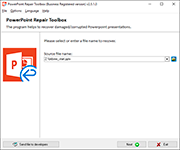
First you must select the damaged file you want to work with. You can do this in one of three ways:- In the center of the program screen you should see an input field. In it, enter the name of the damaged PPT/PPTX file and its path.
- Click the Open icon at the right of the input field and follow the dialog that ensues.
- Click the small button that contains a downward arrow. A dropdown list will appear, and you can select a previously used file from there.
Once you select the file, proceed to step 2 by clicking Next. Step 2: Extraction of media files and analysis of damaged PPT/PPTX file
Step two is completed automated. eRepair PowerPoint scans the framework of the damaged presentation file and pulls out all the media objects and images it can find. Depending on the complexity of the file and its size, as well as the speed of your computer, this could take a long time or a short time. When stage two is over, eRepair PowerPoint displays information about the file recovery.An important thing to note is that eRepair PowerPoint utilizes Microsoft PowerPoint for editing and saving the files you are trying to recover, so it is necessary that you have Microsoft PowerPoint installed on your computer before you try to use eRepair PowerPoint.
eRepair PowerPoint works the same for PPT files as it does for PPTX files. The software saves the presentation and all corresponding media files to your hard drive so that you can view them after they are recovered.
If your presentation has a chart from PowerPoint 2007-2010, the software will reconstruct the charts as bitmap images. If this is not satisfactory, or you need to work with the chart, you can use Microsoft Excel to work with the charts, as long as you have it installed on your computer. eRepair PowerPoint can open a new Excel workbook and can automatically paste the charts into it. You can use Excel to edit the chart, and then copy/paste them back into PowerPoint.

You can go back to file selection using the Back button, click Exit to stop the recovery process, or click Transmit to send recovered data to PowerPoint.
Step 3: Transfer the Recovered Files to PowerPoint If you proceed by clicking Transmit, eRepair PowerPoint performs three tasks:
- eRepair PowerPoint will open your restored presentation in Microsoft PowerPoint. This might take some time, because the software uploads the presentation slide by slide.
- eRepair PowerPoint will open all charts in Microsoft Excel.
- The recovered images and media files will be opened in a folder.

Once all this occurs, you can edit the presentation and save it with a new name in a location on your hard drive.
It is easy to use eRepair PowerPoint. Follow these simple instructions and the software does the work for you. If at any point you have questions or problems with eRepair PowerPoint, the support group is available to help you.